Video Editing Software for Creators: How CapCut, DaVinci Resolve, Premiere Pro, Final Cut and Others Compare
A criteria-led comparison of popular video editors for short-form and long-form creators, covering platforms, pricing models, learning curve, features and workflow fit.
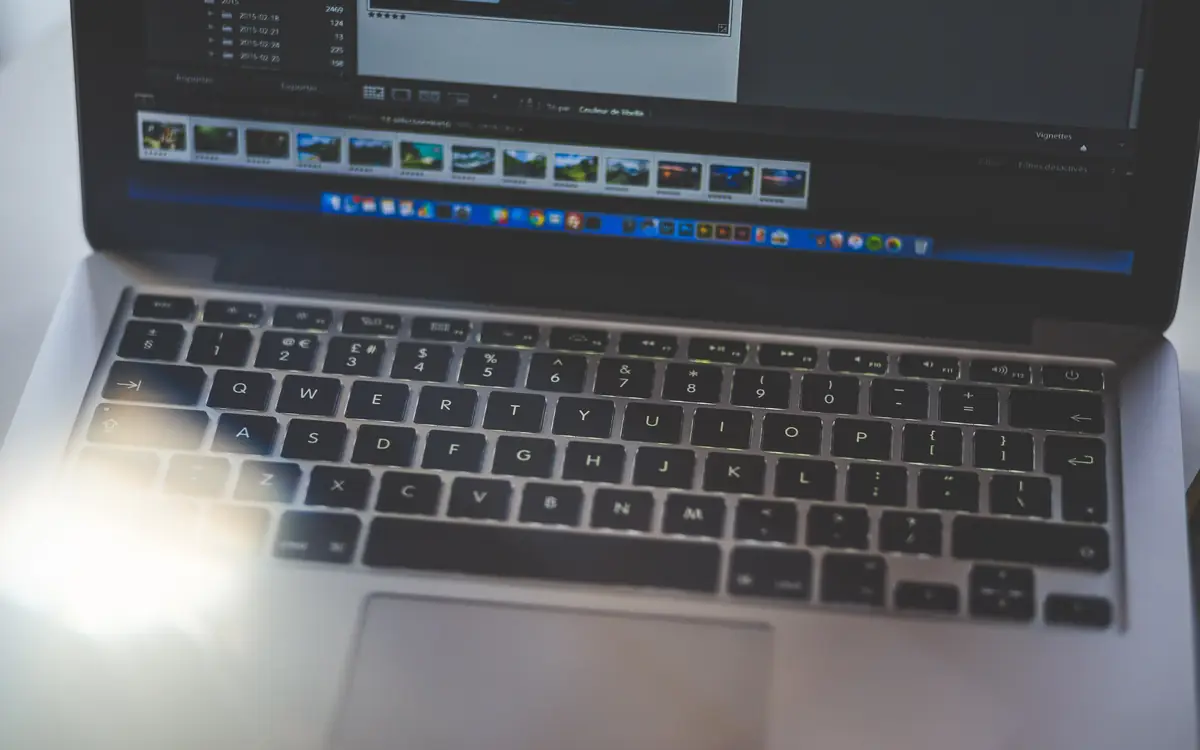
Video editing software ranges from free phone apps to professional suites used on feature films. Choosing the right one depends less on which is "best" and more on what you make, which devices you use and how much time you want to invest in learning.
This guide compares widely used editors by their documented features and positioning. It is not a benchmark test. Pricing, features and licensing change; check current details before choosing.
What to consider
- Platforms: phone, tablet, Mac, Windows, Linux or browser.
- What you make: short vertical clips, long YouTube videos, podcasts, tutorials, cinematic content.
- Pricing model: free, one-time purchase or subscription.
- Learning curve: how quickly you can produce good results.
- Key features: auto-captions, templates, colour grading, audio tools, multi-camera editing, motion graphics.
- Workflow: syncing across devices, collaborating with editors, exporting multiple aspect ratios.
- Terms of service: especially around content ownership and licensing for mobile apps.
The editors
CapCut
Platforms: phone, desktop and browser. Pricing: free tier with paid upgrades. Strengths: fast, template-driven editing for short-form vertical video; auto-captions; effects, transitions and trending templates; easy to learn. Weaknesses: some features require a paid plan; terms of service and data handling have been the subject of public discussion, so read them and consider your comfort level; less suited to long, complex projects. Good for: short-form creators who want speed and trend-friendly features.
DaVinci Resolve
Platforms: Mac, Windows, Linux; also an iPad version. Pricing: a remarkably capable free version; a paid Studio version with additional features. Strengths: professional-grade editing, colour grading (its historic speciality), audio post-production and visual effects in one application; the free version is suitable for most creators. Weaknesses: steep learning curve; demanding on hardware. Good for: long-form creators who want professional tools without a subscription.
Adobe Premiere Pro
Platforms: Mac, Windows. Pricing: subscription (alone or as part of Creative Cloud). Strengths: industry standard in many workplaces; integrates with After Effects, Photoshop, Audition and other Adobe apps; AI-assisted features such as speech-to-text transcription and text-based editing; extensive tutorials and templates. Weaknesses: ongoing subscription cost; can be heavy on resources. Good for: creators who already use Adobe apps, work with other editors or want industry-standard skills.
Final Cut Pro
Platforms: Mac and iPad. Pricing: one-time purchase on Mac; subscription on iPad. Strengths: optimised for Apple hardware with fast performance; magnetic timeline; good for long-form and multi-camera editing. Weaknesses: Apple only. Good for: Mac-based creators who prefer to avoid subscriptions.
iMovie
Platforms: Mac, iPhone, iPad. Pricing: free. Strengths: simple; good for beginners; projects can be moved to Final Cut Pro later. Weaknesses: limited features. Good for: absolute beginners on Apple devices.
Descript
Platforms: Mac, Windows, browser. Pricing: free tier with paid plans. Strengths: edit video and audio by editing a transcript; filler-word removal; screen recording; well suited to podcasts, interviews and talking-head content. Weaknesses: less suited to visually complex editing; subscription for full features. Good for: podcasters and talking-head creators who think in words.
Others worth knowing
- Shotcut and Kdenlive: free, open-source desktop editors.
- Clipchamp: browser-based editor from Microsoft, included with Windows.
- LumaFusion: powerful mobile editor for iPad and iPhone (and Android).
- InShot and VN: simple mobile editors popular for short-form.
Matching editors to creators
| Creator type | Strong candidates |
|---|---|
| Short-form, phone-first | CapCut, InShot, VN, LumaFusion |
| Long-form YouTube on a budget | DaVinci Resolve (free), Shotcut, Kdenlive |
| Mac-based long-form | Final Cut Pro, DaVinci Resolve |
| Adobe users or teams | Premiere Pro |
| Podcasts and talking heads | Descript, Premiere Pro (text-based editing) |
| Beginners on Apple | iMovie |
Features that save the most time
- Auto-captions: essential for short-form, where many viewers watch without sound. Always review them.
- Templates and presets: consistent intros, lower thirds and colour grades.
- Multiple aspect ratio exports: edit once, export vertical, square and horizontal versions.
- Text-based editing: remove sections by deleting text in a transcript.
- Audio clean-up: noise reduction and voice enhancement.
- Proxy editing: edit smaller versions of high-resolution footage on slower computers.
Hardware considerations
Professional editors can be demanding, especially with 4K footage. Check minimum requirements. Fast storage (an SSD), enough RAM and a capable graphics processor make a large difference. Proxy workflows help on older machines.
Learning resources
Most editors have official tutorials, and there are many free courses online. Learning a professional editor deeply pays off for years; switching editors frequently costs time.
How to choose
- List what you make and where.
- Pick two candidates from the table.
- Edit the same short project in both, using free versions or trials.
- Choose the one that felt fastest for you.
- Commit to learning it well.
The best editor is the one that gets your ideas out of your head and onto the screen with the least friction. For many creators, that is a free tool learned thoroughly rather than an expensive one used superficially.
A sample editing workflow for a 10-minute video
- Organise (15 minutes): create folders for footage, audio, graphics and music; name files clearly.
- Rough cut (60 minutes): assemble the best takes in order and remove mistakes and pauses.
- Fine cut (45 minutes): tighten pacing, add B-roll, refine transitions.
- Audio (20 minutes): level dialogue, reduce noise, add licensed music at low volume.
- Colour (15 minutes): correct exposure and white balance, then apply a consistent look.
- Graphics and captions (30 minutes): titles, lower thirds and corrected captions.
- Export and check (20 minutes): export, then watch the full video once before uploading.
Times vary widely, but tracking each stage shows where a template, preset or different editor would save the most time.
Export settings basics
YouTube's help centre publishes recommended upload settings. Common choices for creators:
- Container: MP4
- Video codec: H.264 (widely compatible); HEVC/H.265 or AV1 where supported for smaller files
- Frame rate: the same as you recorded
- Resolution: the same as your timeline, often 1080p or 4K
- Audio: AAC, 48 kHz
Check each platform's current recommendations, which change over time.
Frequently asked questions
Should I switch editors as I grow? Only if your current editor limits you. Switching has a learning cost.
Do I need a powerful computer? Higher resolutions and effects need more power. Proxy workflows, which edit with lower-resolution copies, help older computers.