A Backup Strategy for Creators: The 3-2-1 Rule, Cloud Storage and Archiving Raw Footage
How creators can protect photos, videos, writing and platform content with the 3-2-1 backup rule, practical storage options, automated backups and archiving.
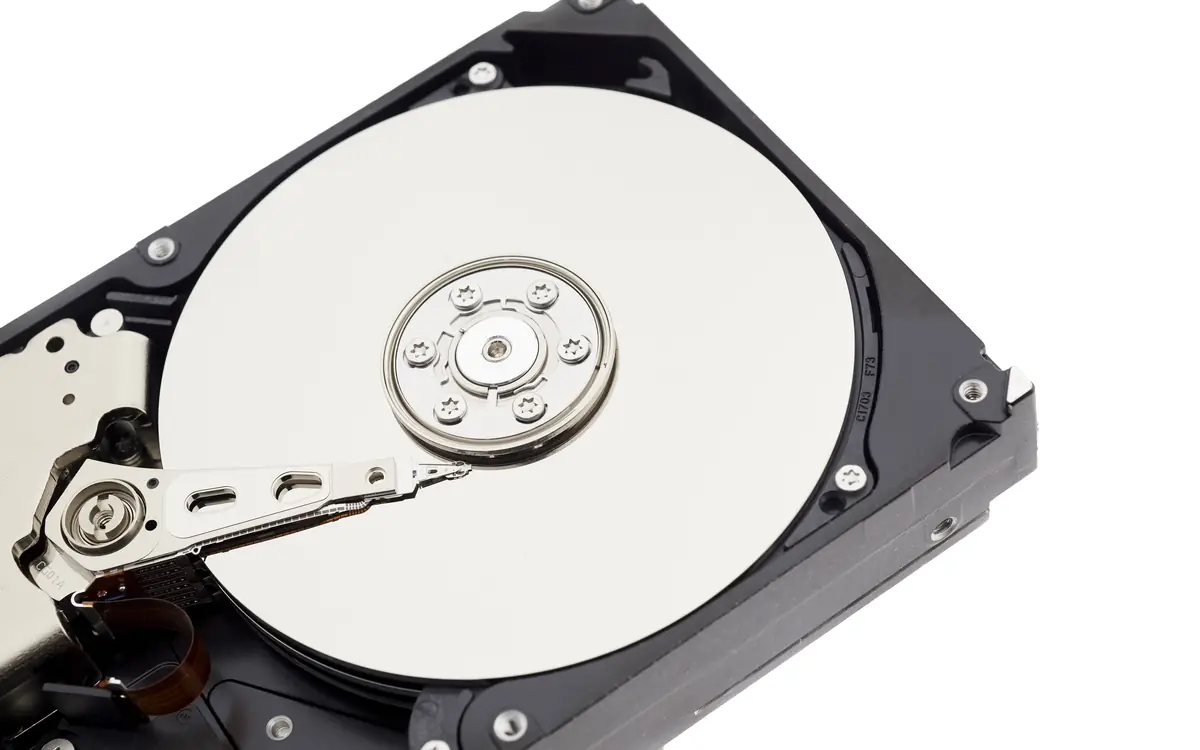
Creators produce a lot of irreplaceable data: raw footage, edited videos, photos, drafts, project files, templates and the content that lives on social platforms. A single failed drive, stolen laptop, ransomware attack or account suspension can wipe out years of work. Most creators know they should back up. Far fewer have a system.
The 3-2-1 rule
The most widely recommended backup principle is simple:
- 3 copies of your important data (the original plus two backups),
- on 2 different types of storage (for example, your computer's drive and an external drive),
- with 1 copy off-site (for example, in cloud storage or at another location).
This protects against the most common disasters: drive failure (another copy exists), theft or fire (an off-site copy exists) and accidental deletion (backups with version history let you restore earlier versions).
What to back up
Prioritise by how hard it is to replace:
- Original files: raw photos and footage, audio recordings, original documents.
- Project files: editing projects, design files, templates and presets.
- Finished exports: final videos, images and articles.
- Website: content, database and media.
- Business records: contracts, invoices, tax documents.
- Platform content: data exports from social and video platforms.
- Email list: regular exports from your newsletter platform.
Storage options
External drives
- Pros: relatively inexpensive per terabyte; fast; you control them.
- Cons: can fail, be lost, stolen or damaged; must be connected to back up.
Solid-state drives (SSDs) are faster and more robust to drops; hard disk drives (HDDs) are cheaper per terabyte for large archives.
Network-attached storage (NAS)
A NAS is a device with several drives connected to your home or studio network.
- Pros: central storage for multiple devices; can use redundancy (RAID) so a single drive failure does not lose data; can automate backups and sync to the cloud.
- Cons: upfront cost; setup and maintenance. Note: RAID is not a backup on its own; it protects against drive failure, not deletion, ransomware or theft.
Cloud storage and sync
Services such as Google Drive, iCloud, Dropbox and Microsoft OneDrive sync files across devices.
- Pros: off-site; accessible anywhere; version history on many plans.
- Cons: sync is not the same as backup. If you delete or corrupt a file, sync may replicate the problem; version history helps but has limits. Storage for large video libraries can be expensive.
Cloud backup services
Dedicated backup services, such as Backblaze and others, continuously back up your computer to the cloud.
- Pros: automatic; off-site; restore options.
- Cons: initial uploads of large libraries can take a long time; subscription cost; check retention policies for deleted files and external drives.
Object storage
For technical creators, object storage services (such as Amazon S3, Backblaze B2, Cloudflare R2 or Wasabi) can store large archives cost-effectively, often accessed with backup software.
A practical set-up
For many creators:
- Working drive: your computer's internal drive or a fast external SSD for current projects.
- Local backup: an external drive or NAS with automated backups (Time Machine on Mac, File History on Windows, or backup software).
- Off-site backup: a cloud backup service or cloud storage with version history.
For large video libraries, add:
- Archive drives: completed projects moved to large hard drives, with two copies stored in different places.
Automate it
Backups that depend on remembering do not happen. Set up automatic, scheduled backups wherever possible. For manual tasks, such as exporting platform data or moving projects to archive drives, set recurring calendar reminders.
Test your restores
A backup you have never restored is a hope, not a backup. Every few months:
- Restore a random file from each backup.
- Check that archive drives still spin up and files open.
- Confirm your cloud backup includes the folders and drives you expect.
Organise your files
Good organisation makes backups and archives usable:
- A consistent folder structure:
Year / Project / Raw, Project, Exports. - Descriptive file names with dates:
2026-10-15_capsule-wardrobe_raw-01.mp4. - A simple index (spreadsheet) of archive drives and what is on them.
Platform content
Your content on social and video platforms is vulnerable to account loss. Most major platforms provide data download tools in their settings. Schedule a download every few months and keep your original files of everything you post. Export your newsletter subscriber list regularly too.
Website backups
- Use your host's backup feature, but also keep your own copy off the host.
- For WordPress and similar systems, backup plugins can send backups to cloud storage on a schedule.
- For static sites, your source files in a version control repository with a remote copy are effectively a backup.
Protect backups from ransomware
Ransomware can encrypt connected drives and synced folders. Mitigate by:
- Keeping at least one backup disconnected or immutable (some cloud services offer versioning or object lock).
- Keeping software updated and avoiding suspicious downloads.
- Using cloud services with version history.
A thirty-minute starter plan
- Buy an external drive larger than your computer's drive.
- Turn on automatic backups to it.
- Sign up for a cloud backup service or turn on version history in cloud storage.
- Download your data from your two most important platforms.
- Export your email list.
- Set a quarterly reminder to test restores and repeat exports.
The cost of a solid backup system is small compared with the cost of losing your work. Set it up once, automate it, test it occasionally, and you can stop worrying about the worst-case scenario.
Worked example: a creator's 3-2-1 setup
- Copy 1: working files on the laptop
- Copy 2: nightly automatic copy to an external drive at home
- Copy 3: continuous cloud backup to a separate provider
Raw video is archived to a second external drive monthly and stored at a different address. Once a quarter, the creator restores a random project from the cloud to confirm it opens.
Frequently asked questions
Is cloud sync the same as backup? No. Sync mirrors changes, including deletions and corruption. A true backup keeps versions you can restore.